
Introduction to the Tkinter Listbox
A Listbox widget displays a list of single-line text items. A Listbox allows you to browse through the items and select one or multiple items at once.
To create a Listbox, you use the tk.Listbox class like this:
listbox = tk.Listbox(container, listvariable, height)Code language: Python (python)In this syntax:
- The
containeris the parent component of the Listbox. - The
listvariablelinks to atkinter.Variableobject. More explanation on this later. - The
heightis the number of items that the Listbox will display without scrolling.
List items
To populate items to a Listbox, you first create a Variable object that is initialized with a list of items. And then you assign this Variable object to the listvariable option as follows:
list_items = tk.Variable(value=items)
listbox = tk.Listbox(
    container,
    height,
    listvariable=list_items
)Code language: Python (python)
To add, remove, or rearrange items in the Listbox, you just need to modify the list_items variable.
Select mode
The selectmode option determines how many you can select and how the mouse drags will affect the items:
tk.BROWSE– allows a single selection. If you select an item and drag it to a different line, the selection will follow the mouse. This is the default.tk.EXTENDED– select any adjacent group of items at once by clicking the first item and dragging to the last line.tk.SINGLE– allow you to select one line and you cannot drag the mouse.tk.MULTIPLE– select any number of lines at once. Clicking on any line toggles whether it is selected or not.
Binding the selected event
To execute a function when the selected items change, you bind that function to the <<ListboxSelect>> event:
listbox.bind('<<ListboxSelect>>', callback)Code language: Python (python)Tkinter Listbox widget example
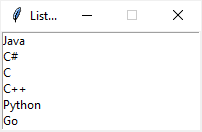
The following program displays a Listbox that contains a list of programming languages. When you select one or more items, the program displays the selected ones in a message box:
import tkinter as tk
from tkinter import ttk
from tkinter.messagebox import showinfo

# create the root window
root = tk.Tk()
root.title('Listbox')


# create a list box
langs = ('Java', 'C#', 'C', 'C++', 'Python',
         'Go', 'JavaScript', 'PHP', 'Swift')

var = tk.Variable(value=langs)

listbox = tk.Listbox(
    root,
    listvariable=var,
    height=6,
    selectmode=tk.EXTENDED
)

listbox.pack(expand=True, fill=tk.BOTH)


def items_selected(event):
    # get all selected indices
    selected_indices = listbox.curselection()
    # get selected items
    selected_langs = ",".join([listbox.get(i) for i in selected_indices])
    msg = f'You selected: {selected_langs}'
    showinfo(title='Information', message=msg)


listbox.bind('<<ListboxSelect>>', items_selected)

root.mainloop()
Code language: Python (python)
Output:
How it works.
First, create a Variable that holds a list of programming languages:
langs = ('Java', 'C#', 'C', 'C++', 'Python',
        'Go', 'JavaScript', 'PHP', 'Swift')

var = tk.Variables(value=langs)Code language: Python (python)
Second, create a new Listbox widget and assign the var object to the listvariable:
listbox = tk.Listbox(
    root,
    listvariable=var,
    height=6,
    selectmode=tk.EXTENDED
)Code language: Python (python)
The height shows six programming languages without scrolling. The selectmode=tk.EXTENDED allows multiple selections.
Third, define a function that will be invoked when one or more items are selected. The items_selected() function shows a list of currently selected list items:
def items_selected(event):
    # get all selected indices
    selected_indices = listbox.curselection()

    # get selected items
    selected_langs = ",".join([listbox.get(i) for i in selected_indices])
    msg = f'You selected: {selected_langs}'
    showinfo(title='Information', message=msg)Code language: Python (python)
Finally, bind the items_selected function with the '<<ListboxSelect>>' event:
listbox.bind('<<ListboxSelect>>', items_selected)Code language: Python (python)Adding a scrollbar to the Listbox
The following program illustrates how to add a scrollbar to a Listbox:
import tkinter as tk
from tkinter import ttk
from tkinter.messagebox import showinfo

# create the root window
root = tk.Tk()

root.title('Listbox')


# create a list box
langs = ('Java', 'C#', 'C', 'C++', 'Python',
         'Go', 'JavaScript', 'PHP', 'Swift')

var = tk.Variable(value=langs)

listbox = tk.Listbox(
    root,
    listvariable=var,
    height=6,
    selectmode=tk.EXTENDED)

listbox.pack(expand=True, fill=tk.BOTH, side=tk.LEFT)

# link a scrollbar to a list
scrollbar = ttk.Scrollbar(
    root,
    orient=tk.VERTICAL,
    command=listbox.yview
)

listbox['yscrollcommand'] = scrollbar.set

scrollbar.pack(side=tk.LEFT, expand=True, fill=tk.Y)


def items_selected(event):
    # get selected indices
    selected_indices = listbox.curselection()
    # get selected items
    selected_langs = ",".join([listbox.get(i) for i in selected_indices])
    msg = f'You selected: {selected_langs}'

    showinfo(title='Information', message=msg)


listbox.bind('<<ListboxSelect>>', items_selected)

root.mainloop()Code language: Python (python)
Output:
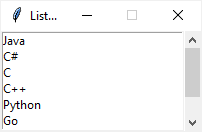
For more information on how to link a scrollbar to a scrollable widget, check out the scrollbar widget tutorial.
Summary
- Use the
tk.Listbox(container, height, listvariable)to create a Listbox widget; alistvariableshould be atk.StringVar(value=items). - Bind a callback function to the
'<<ListboxSelect>>'event to execute the function when one or more list items are selected.


